
Explore The Best AI Websites & Tool
Your all-in-one toolkit for productivity, creativity, and development. Over 40 powerful tools to streamline your workflow.
SearchHow to Use Stable Diffusion 3.5 Free on ComfyUI: A Step-by-Step Guide
Stability AI has just released Stable Diffusion 3.5, their most powerful image generation model so far. The best part? It's completely free, open-source, and can be used offline. You can create ultra high-definition images without any commercial licensing restrictions, including NSFW content. In this guide, we’ll walk you through the installation process so you can start generating stunning images in no time.
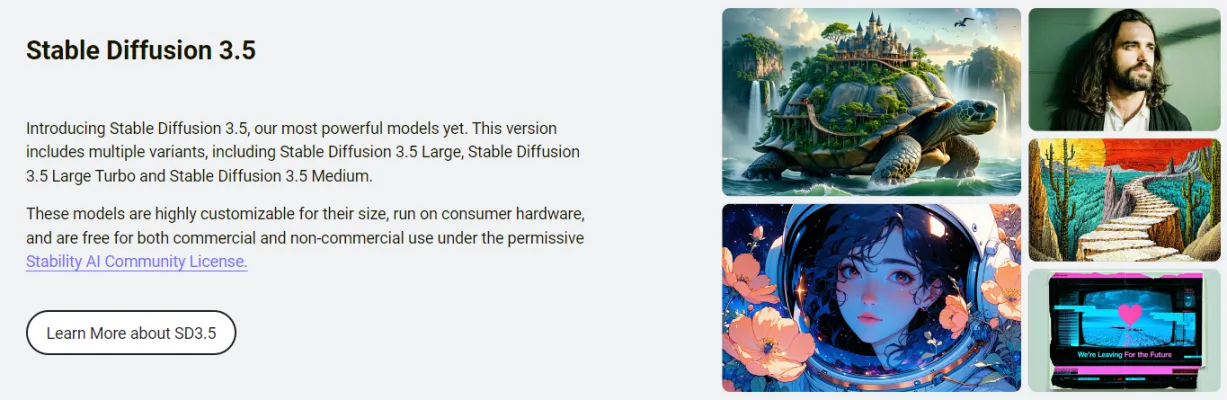
What's New in Stable Diffusion 3.5(SD 3.5)?
Stable Diffusion 3.5 comes with some exciting updates:
- Three Versions: Stable Diffusion Model has three different versions: Large, Turbo, and Medium. The Medium version will be released on October 29th.
- Performance Boost: Early reviews show that Stable Diffusion 3.5 outperforms all previous versions.
- Large Model:
🔹Parameters: 8 billion
🔹Best For: Professional users needing top-quality images.
🔹Requirements: At least 16 GB of RAM.
- Turbo Model:
🔹Optimized For: Systems with at least 8 GB of RAM.
🔹Speed: Produces high-quality images faster than the Large model.
Both versions are free to download, so choose based on your system’s capabilities.
👉To know more, visit Stability AI's Groundbreaking Release of Stable Diffusion 3.5 (https://aipure.ai/articles/stability-ais-groundbreaking-release-of-stable-diffusion-3-5) or
https://stability.ai/stable-image

How to Install Stable Diffusion 3.5(ComfyUI Stable Diffusion)on PC
Follow these simple steps to install Stable Diffusion 3.5 on your computer.
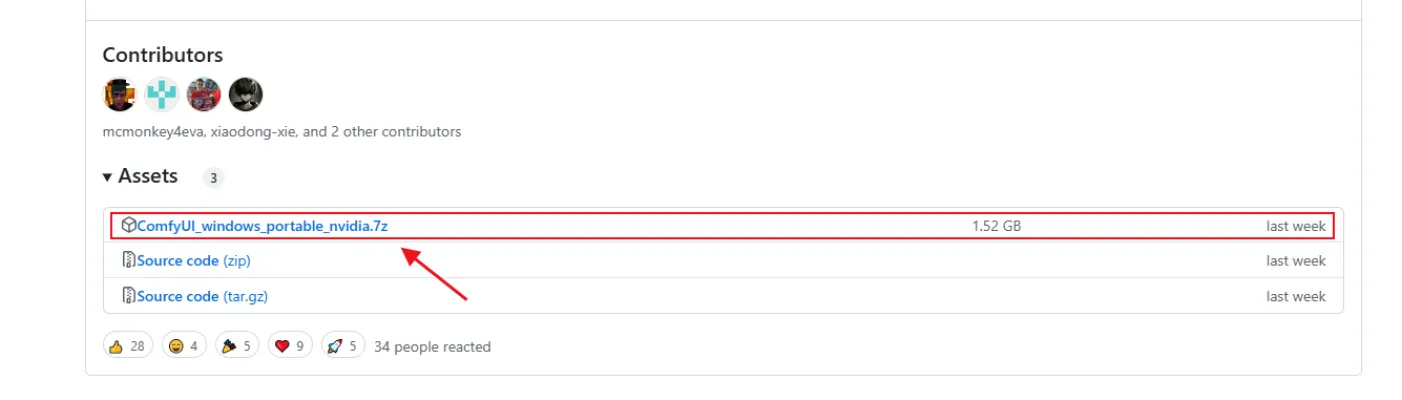
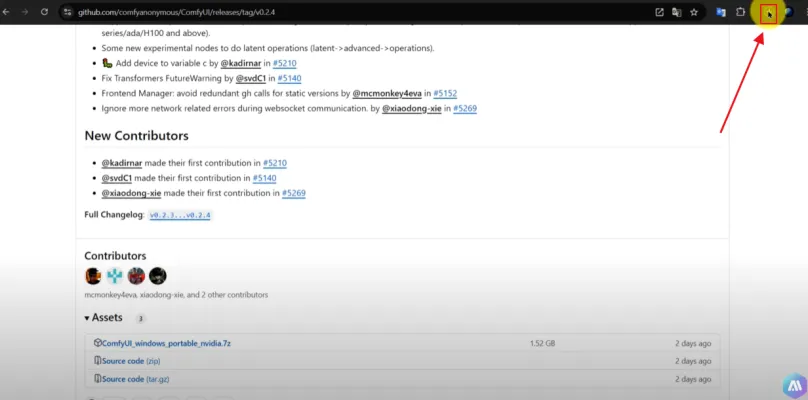
- Clink Stable Diffusion 3.5(https://github.com/comfyanonymous/ComfyUI/releases/tag/v0.2.4) to visit stable diffusion github.
- Scroll down to find the Comfy UI zip file (approximately 1.52 GB).
- Click to download and unzip the file once it's finished downloading.
- Click the Stable Diffusion 3.5 Large (https://huggingface.co/stabilityai/stable-diffusion-3.5-large/tree/main) or Stable Diffusion 3.5 Large Turbo (https://huggingface.co/stabilityai/stable-diffusion-3.5-large-turbo/tree/main) to download the appropriate version for your system.
- If you have at least 16 GB of VRAM, download the Large version; otherwise, choose Turbo.
- You’ll be taken to the Stable Diffusion Hugging Face page. If you don’t have an account, create one and log in.
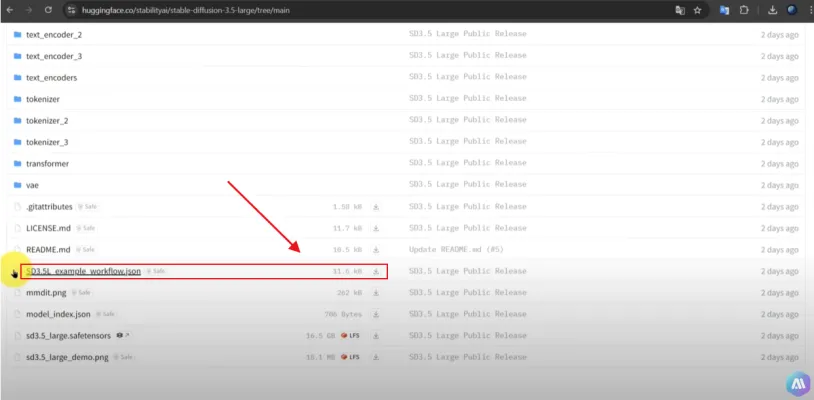
- Look for "files and versions" and find the small 11 KB file labeled SD 3.5L. Download it.
- Next, download the 16 GB SD 3.5 Large model file.
- You’ll need three additional files to run Stable Diffusion 3.5 properly. Click the links below to download.
🔥 clip_g.safetensors: https://huggingface.co/stabilityai/stable-diffusion-3-medium/resolve/main/text_encoders/clip_g.safetensors?ref=blog.comfy.org
🔥 clip_l.safetensors: https://huggingface.co/stabilityai/stable-diffusion-3-medium/resolve/main/text_encoders/clip_l.safetensors?ref=blog.comfy.org
🔥 t5xxl_fp16.safetensors: https://huggingface.co/stabilityai/stable-diffusion-3-medium/resolve/main/text_encoders/t5xxl_fp16.safetensors?ref=blog.comfy.org to your models/clip folder
- If your VRAM is lower, replace the fp16 file with the fp8 version to avoid crashes.
- Ensure you are logged into your Hugging Face account to access these downloads.
- Open the ComfyUI folder you unzipped earlier.
- Navigate to the "checkpoints" folder in the "models" folder.
- Paste the 16 GB SD 3.5 Large model file on "checkpoints" folder.
- Place the three clip files you downloaded into the "clip" folder. Mixing up files could cause installation issues.
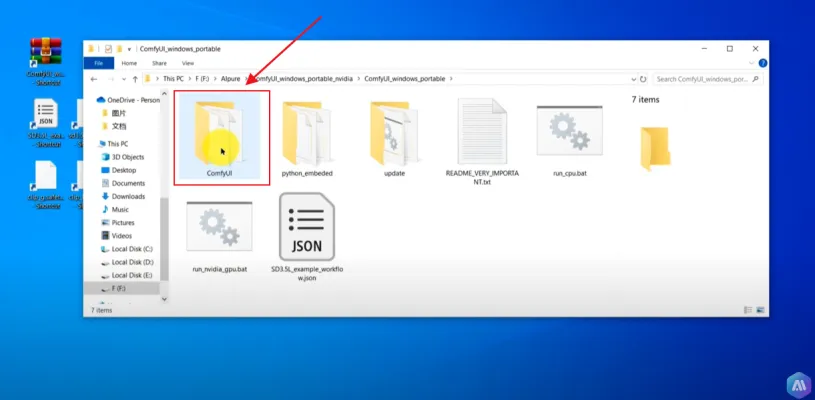
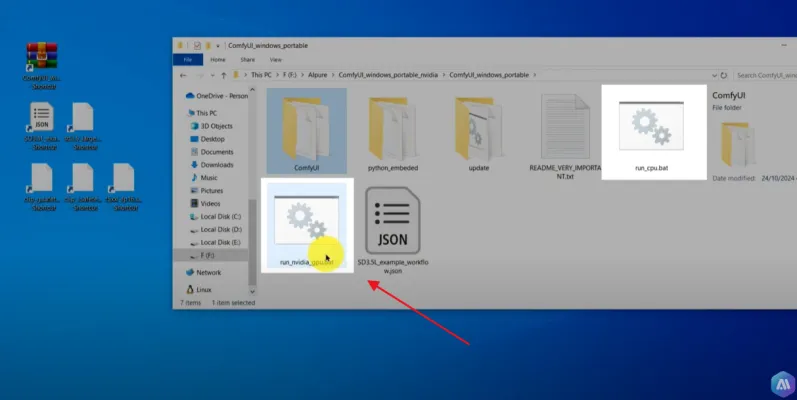
- Return to the root directory of ComfyUI. At the bottom, you’ll see two scripts.
- If your computer lacks an Nvidia GPU, run the first script that uses your CPU, but note it will be slower.
- If you have an Nvidia GPU, run the second script. Double-click to open it and allow a few minutes for the launch.
- Once ready, you’ll see the control panel. Drag and drop the SD 3.5L file into the interface.
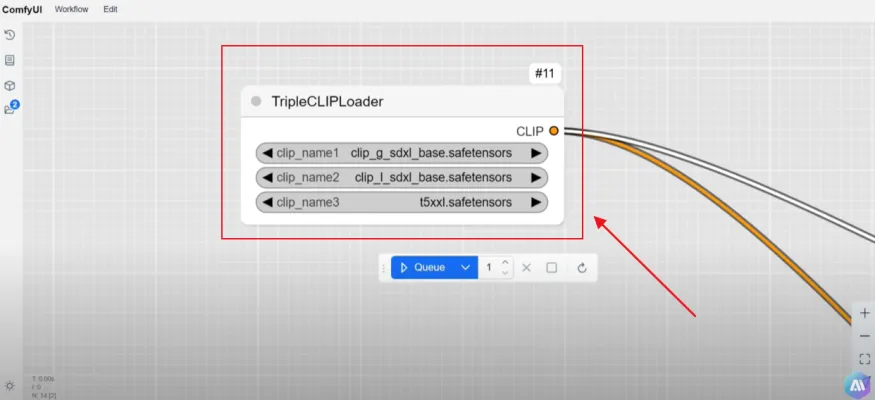
- In the clip section, select the clip model you prefer.
How to use ComfyUI Stable Diffusion 3.5 on your PC
To generate images:
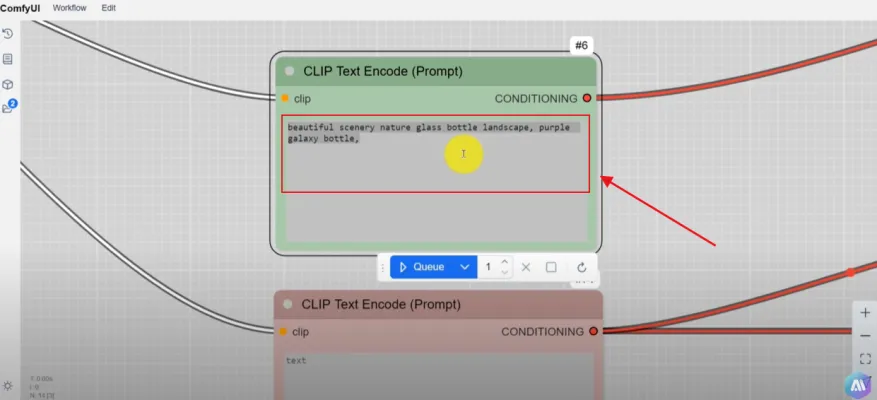
1.Locate the prompt input box and type in your desired prompt.
2.On the left side, under clip, select the three clip files.
3.Adjust basic settings if needed.
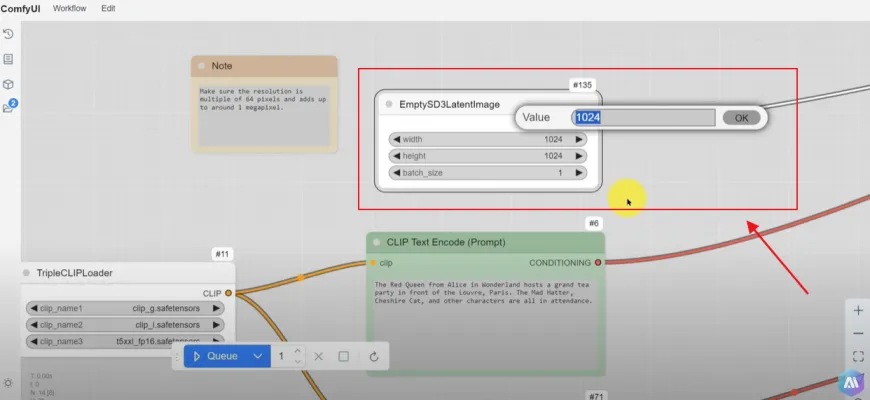
4.Click "Queue" in the middle of the screen.
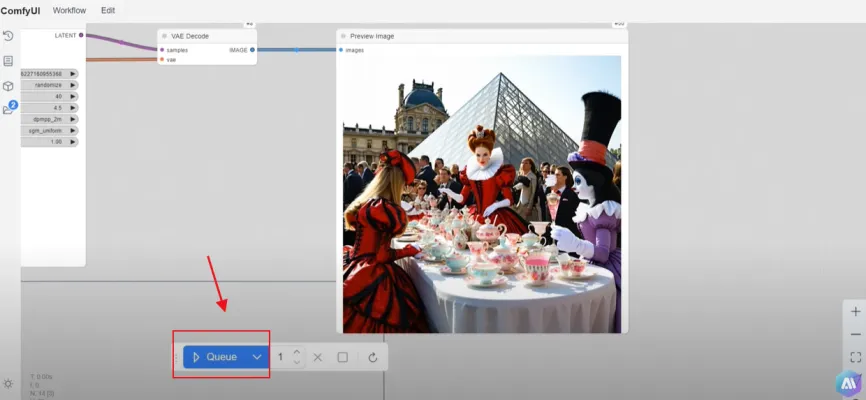
After a short wait, you’ll see your generated image. The speed of generation relies on your computer's performance. In our test, it took about 30 seconds to create an image.
Conclusion
Stable Diffusion 3.5 offers incredible quality and speed for free, making it an excellent tool for image generation. Whether you want realistic photos or cartoon-style images, the results are impressive and ready for download!

Visit AIPURE now for the latest AI news, top AI tools, and an in-depth guide on monetizing AI strategies!
Trending

How to Use Perchance AI: A Comprehensive Guide
Discover how to unlock creativity with Perchance AI. Learn to access, use, and maximize this versatile platform for generating content. Explore practical tips now!

Google's NotebookLM Expands to Business with Enhanced Features
Google's AI-powered research tool NotebookLM is set to revolutionize enterprise productivity with a new business-focused version, offering advanced features for organizations and universities.
Thetawise Review: AI Math Tutor for Students
Discover how Thetawise, the AI math tutor, revolutionizes student learning. Explore features, benefits, and alternatives in our comprehensive guide.

How to Use Vozard: AI Voice Changer for Gaming & Content
Learn how to use Vozard, the AI voice changer for gaming and content creation. Explore our guide for practical tips on transforming your voice in real-time.

How to Use AnyEnhancer: Boost Video Quality with AI
Discover how to use AnyEnhancer to transform your videos. Learn step-by-step tips for AI-powered enhancement, from resolution upscaling to color restoration.