
Explore The Best AI Websites & Tool
Your all-in-one toolkit for productivity, creativity, and development. Over 40 powerful tools to streamline your workflow.
SearchHow to Use HitPaw Photo AI: A Comprehensive Guide
What is HitPaw Photo AI
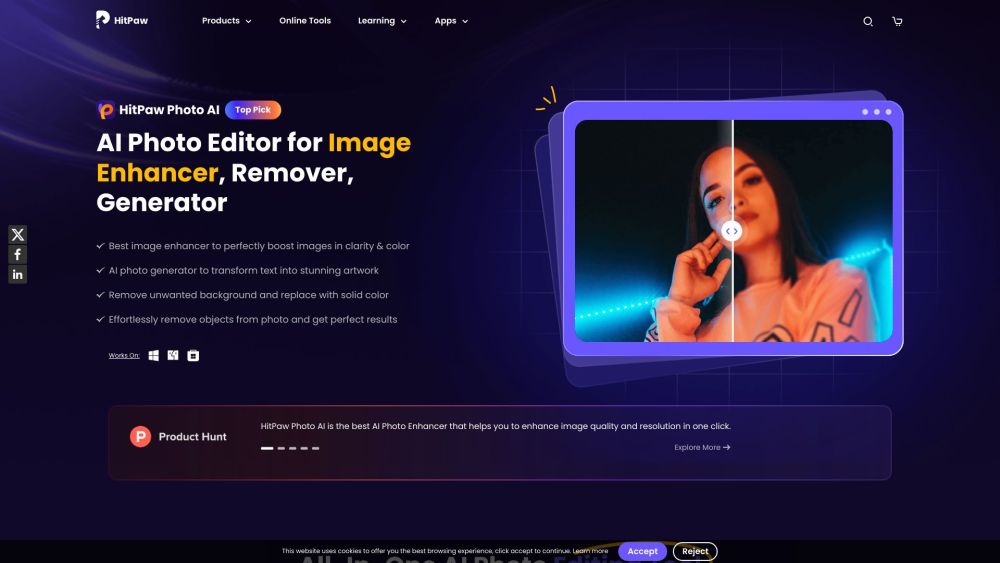
HitPaw Photo AI, now known as HitPaw FotorPea, is an advanced AI-powered photo enhancement software designed for both amateur and professional photographers. This versatile tool specializes in improving image quality through various features such as image upscaling, blur removal, noise reduction, and color correction. With its intuitive one-click enhancement process, users can effortlessly enhance their images, making it ideal for restoring old photos or improving images taken in low-light conditions.
The software also includes specialized tools for face retouching, object removal, and background colorization, allowing for complete creative control over photo editing. HitPaw FotorPea supports batch processing, making it efficient for users needing to edit multiple images simultaneously. Available for both Windows and macOS, it caters to a wide audience, including social media enthusiasts and professionals seeking to elevate their visual content. With positive user testimonials highlighting its ease of use and effectiveness, HitPaw FotorPea stands out as a comprehensive solution for enhancing and transforming images.
Use Cases of HitPaw Photo AI
HitPaw Photo AI is a versatile tool that enhances images using advanced artificial intelligence technology. Here are some prominent use cases:
- Restoring Old Photographs: HitPaw Photo AI excels in revitalizing damaged or faded historical photos. Its colorization and scratch repair features breathe new life into old images, allowing users to preserve memories with improved clarity and vibrancy.
- Enhancing Portraits: The AI face enhancement model is ideal for photographers seeking to perfect portraits. It effectively removes blemishes and enhances skin tones, resulting in natural and flattering images that require minimal manual retouching.
- Upscaling Low-Resolution images: With the ability to upscale images up to 8K resolution without quality loss, HitPaw Photo AI is perfect for graphic designers and marketers needing high-quality visuals for print or digital media. Users can enlarge images while maintaining sharpness and detail.
- Removing Unwanted Objects: For those looking to create clean and professional images, the object removal feature allows users to effortlessly eliminate distractions or photobombers from their photos, enhancing the overall composition.
- Creating AI-Generated Art: Users can leverage HitPaw's text-to-image generator to convert prompts into stunning artwork. This feature is particularly beneficial for artists and designers seeking inspiration or unique visuals for projects.
In summary, HitPaw Photo AI serves a wide range of applications, making it a valuable asset for both casual users and professionals in the imaging industry.
How to Access HitPaw Photo AI
Accessing HitPaw Photo AI is a straightforward process. Follow these steps to get started:
- Visit the Official Website: Go to the HitPaw official website at hitpaw.com/photo-ai. This is the central hub where you can find all the information regarding the software.
- Download the Software: Click on the "Download" button for your operating system (Windows or macOS). The software is available for both platforms, and the download will initiate automatically.
- Install HitPaw Photo AI: Once the download is complete, locate the installer file on your device. Double-click the file to begin the installation process. Follow the on-screen instructions to install the software on your computer.
- Launch the Application: After installation, find the HitPaw Photo AI application on your desktop or in the applications folder. Double-click the icon to launch the software.
- Create an Account or Log In: If you are a new user, you may need to create an account. Follow the prompts to register. If you already have an account, simply log in using your credentials.
- Start Enhancing Your Photos: Once logged in, you can start using HitPaw Photo AI to enhance your images. Upload your photos and explore various AI-powered features to improve their quality.
By following these steps, you can easily access and utilize HitPaw Photo AI for your photo enhancement needs.
How to Use HitPaw Photo AI
Using HitPaw Photo AI is simple and intuitive. Here's a step-by-step guide:
- Download and Install: Begin by downloading HitPaw FotorPea from the official website. Choose the appropriate version for your operating system (Windows or Mac) and follow the installation prompts to set up the software on your computer.
- Launch the Application: Once installed, open HitPaw FotorPea. The user-friendly interface will greet you, making it easy to navigate through its features.
- Select an AI Model: Click on the "AI Enhance" option to import your photo. You can choose from various AI models, such as Face Model for portraits or Low-light Model for dark images. This selection allows the software to apply the best enhancements based on your photo type.
- Preview Enhancements: After selecting your model, hit the "Preview" button. This allows you to see the before-and-after effects in real-time, ensuring the adjustments meet your expectations.
- Export the Enhanced image: Once satisfied with the enhancements, select the desired output format (PNG, JPG, WEBP) and click "Export." Your enhanced image will be saved to your specified location, ready for use.
Additional features include object removal and AI art generation. To remove objects, upload a photo and use the object removal tool. For AI art generation, enter a prompt to create artwork from scratch, transforming text into stunning images.
How to Create an Account on HitPaw Photo AI
Creating an account on HitPaw Photo AI is a straightforward process:
- Visit the HitPaw Website: Go to the official HitPaw website at hitpaw.com.
- Access the Login Page: Click on the "Log In" option located at the top right corner of the homepage.
- Select "Create an Account": On the login page, look for the "Create an Account" or "Sign Up" link.
- Fill Out the Registration Form: Enter your email address and choose a secure password. You may also need to provide additional information, such as your name.
- Verify Your Email: Check your email for a verification link from HitPaw. Click on this link to confirm your email address and activate your account.
- Log In to Your Account: Once your email is verified, return to the login page and enter your credentials to access your HitPaw Photo AI account.
Tips for Using HitPaw Photo AI
To maximize the potential of HitPaw Photo AI, consider these tips:
- Choose the Right AI Model: Select the model that best suits your photo's needs for optimal results.
- Preview Before Exporting: Always use the preview feature to see how your edits will look before saving.
- Utilize Batch Processing: Take advantage of batch processing for multiple images to save time and ensure consistency.
- Explore Additional Features: Experiment with features like object removal and background editing to create stunning visuals.
- Check Output Formats: Choose the correct output format based on your intended use—whether for web, print, or social media.
By following these tips and guidelines, you can harness the full power of HitPaw Photo AI to enhance your photos and unleash your creativity in digital imaging.
Trending

ttsMP3.com Review: Free AI text-to-Speech Service Guide
Explore our comprehensive ttsMP3.com review. Learn about features, benefits, and alternatives of this free AI text-to-speech tool. Discover practical tips for content creators.
How to Use PixAI - AI Art Generator: Ultimate Guide
Discover how to create stunning anime-style art with PixAI. Learn tips, tricks, and best practices for using this powerful AI art generator. Explore the full guide now!
How to Use ReplyWorker: Master AI Customer Engagement
Discover how to use ReplyWorker to revolutionize your customer engagement. Learn key features, setup tips, and best practices in our comprehensive guide.
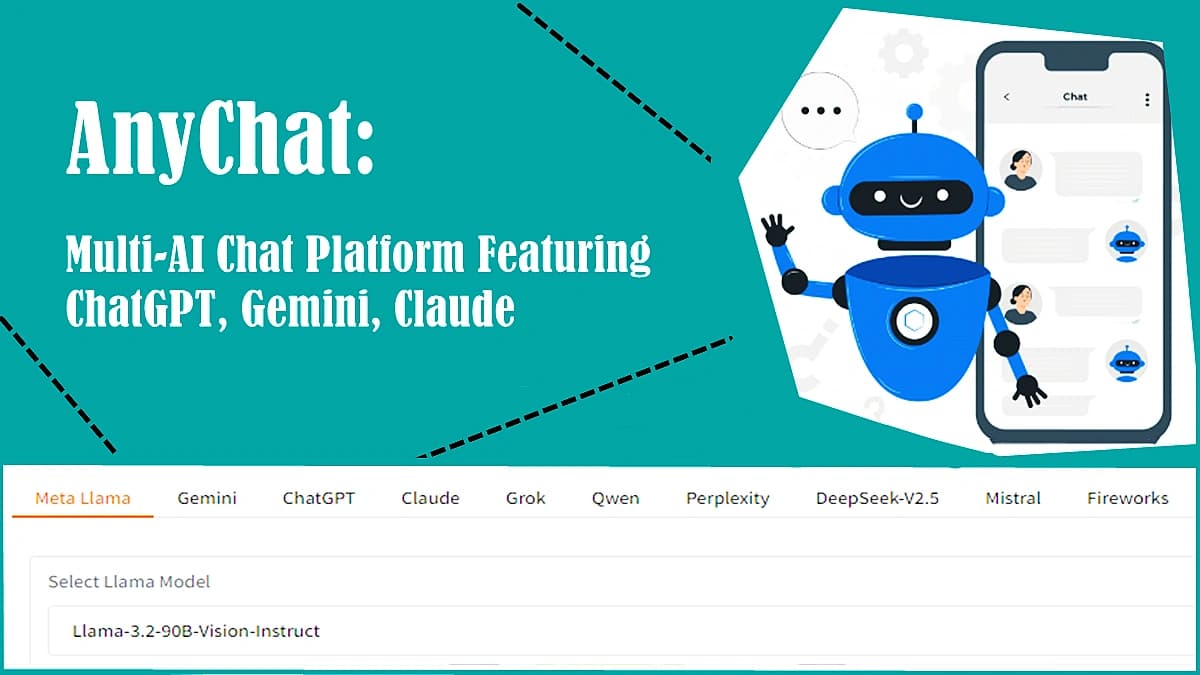
AnyChat Multi-AI Chat Platform Featuring ChatGPT, Gemini, Claude
AnyChat is revolutionizing the landscape of artificial intelligence by integrating multiple advanced AI models, including OpenAI's ChatGPT, Google's Gemini, Meta Llama, Claude, Grok, Qwen, Perplexity, DeepSeek-V2.5, Mistral, and Fireworks. This innovative platform aims to provide users with unparalleled flexibility and functionality in their interactions with AI, catering to a wide range of applications from casual conversation to complex problem-solving.
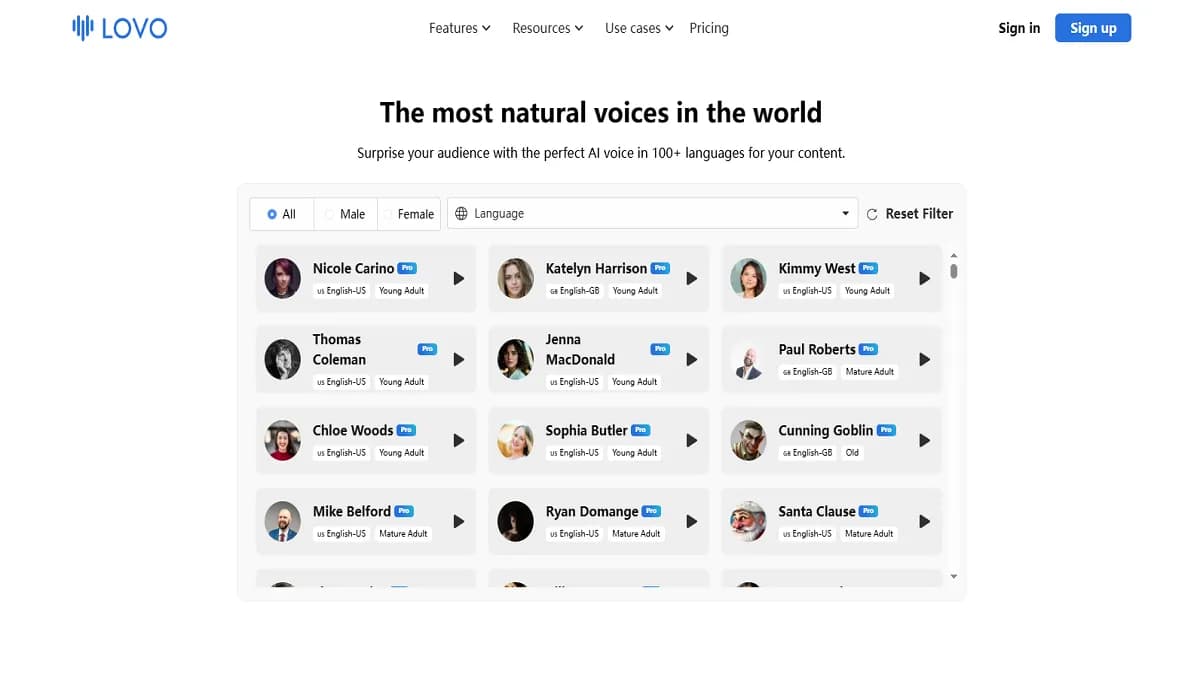
LOVO AI Voice Generator Review: Transform Your Content
Discover how LOVO AI Voice Generator revolutionizes content creation with AI-powered voiceovers. Explore features, benefits, and alternatives in our comprehensive guide.