
Explore The Best AI Websites & Tool
Your all-in-one toolkit for productivity, creativity, and development. Over 40 powerful tools to streamline your workflow.
SearchHow to Use Fellow APP Meeting: Boost Productivity Guide
Introduction to Fellow APP Meeting
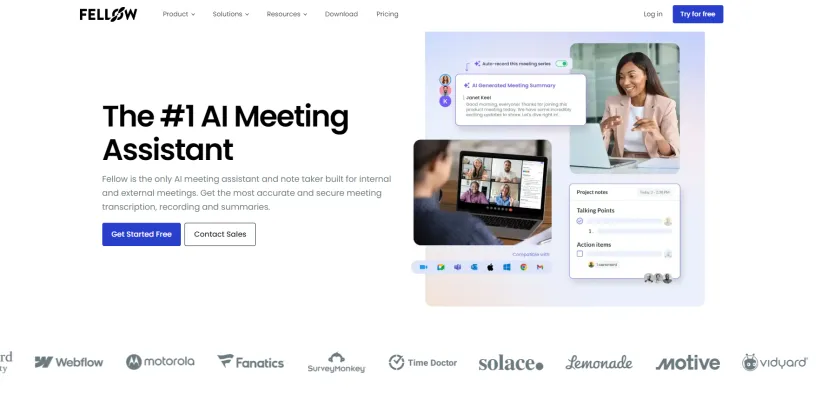
Fellow APP is a cutting-edge meeting management tool designed to enhance team collaboration and productivity. It seamlessly integrates with popular calendar platforms like Google Meet, Microsoft Teams, and Zoom, providing users with a centralized hub for organizing agendas, taking notes, and tracking action items.
The app's core features include real-time collaborative meeting notes, AI-driven transcriptions, and smart summaries that capture essential insights during discussions. This allows participants to focus on the conversation without missing key points. Fellow also facilitates accountability by assigning action items directly within the meeting notes, ensuring that tasks are tracked and completed.
With its user-friendly interface, Fellow APP is tailored for various meeting formats, including one-on-ones, team meetings, and cross-functional collaborations. By streamlining the meeting process from preparation to follow-up, Fellow empowers teams to work more efficiently, ultimately leading to better outcomes and enhanced communication. Whether you're a solopreneur or part of a large organization, Fellow provides the tools necessary to make every meeting more productive.
Use Cases of Fellow APP Meeting
Fellow.app serves as an invaluable tool for various meeting scenarios, optimizing productivity and collaboration across teams and organizations. Here are some notable use cases:
- One-on-One Meetings: Fellow enhances the effectiveness of one-on-one meetings by allowing both participants to collaboratively create agendas, track action items, and provide real-time feedback. The platform's AI Copilot suggests talking points, ensuring that critical topics are covered while promoting accountability through assigned tasks.
- Team Meetings: With Fellow, teams can streamline their meetings by utilizing AI-generated agendas and templates tailored for specific meeting types. The platform automates note-taking and action item assignments, enabling participants to focus on discussions rather than administrative tasks. This results in more engaging and productive meetings.
- Cross-Functional Meetings: Fellow facilitates seamless collaboration in cross-functional meetings by centralizing notes, decisions, and action items. Integration with popular project management and communication tools ensures that teams remain aligned and accountable, regardless of their departments.
- Remote Meetings: For remote teams, Fellow offers a comprehensive solution to maintain engagement and productivity. The app integrates with video conferencing tools like Zoom and Google Meet, providing real-time transcription and summaries that help participants stay connected and informed.
- Project Check-Ins: Fellow aids in conducting effective project check-ins by allowing teams to track progress, update statuses, and discuss roadblocks. The platform's analytics provide insights into meeting productivity, helping teams continuously improve their processes.
By leveraging Fellow.app, organizations can transform their meeting culture, leading to enhanced collaboration, accountability, and overall efficiency.
How to Access Fellow APP Meeting
Accessing your meetings on the Fellow app is a straightforward process. Follow these steps to get started:
- Sign Up or Log In: Visit Fellow.app and click on the "Get Started Free" or "Log In" button. New users should complete the registration process, while existing users can simply log in with their credentials.
- Sync Your Calendar: Once logged in, integrate Fellow with your calendar (Google Calendar, MS Teams, Zoom, etc.) by following the prompts. This sync allows Fellow to automatically pull in your scheduled meetings.
- Navigate to the Meetings Section: On the left-hand navigation panel, click on the "Meetings" section to view a calendar displaying all your upcoming meetings along with their associated notes and agendas.
- Select a Meeting: Click on any scheduled meeting in the calendar to open the meeting details, including the agenda, notes, and action items.
- Participate in the Meeting: Use the integrated features within Fellow to take notes, assign action items, and collaborate with other participants. For virtual meetings, ensure you have the relevant video conferencing tool open alongside Fellow for a seamless experience.
How to Use Fellow APP Meeting
To effectively utilize Fellow APP Meeting, follow these steps:
- Set Up Your Account: Sign up on the Fellow app website, choosing a free trial or paid plan to access all features.
- Integrate with Calendar: Connect Fellow to your preferred calendar for seamless agenda creation and management.
- Create Meeting Agendas: Use the "Meetings" section to create agendas and add talking points that team members can contribute to before the meeting.
- Take Collaborative Notes: During meetings, use the real-time collaborative note feature to document key discussions, decisions, and action items.
- Assign Action Items: Define and assign tasks to team members, compiling a master to-do list for accountability and follow-up.
- Review Historical Notes: Access historical notes to review previous discussions and track ongoing tasks.
- Share Meeting Summaries: Use sharing options to distribute meeting notes and action items via email, Slack, or MS Teams.
How to Create an Account on Fellow APP Meeting
Creating an account is simple:
- Visit fellow.app.
- Click "Get Started Free" on the homepage.
- Enter your email address.
- Set a strong password.
- Accept the terms and conditions.
- Click "Sign Up" and verify your email.
- Complete your profile with additional information as prompted.
Tips for Fellow APP Meeting
To maximize your experience with Fellow APP:
- Utilize Collaborative Agendas: Invite team members to contribute to agendas before meetings.
- Leverage Action Items: Clearly assign and sync tasks with project management tools.
- Integrate with Calendar and Video Tools: Use Fellow's integration features for seamless transitions between meetings and note-taking.
- Promote Real-time Collaboration: Encourage team members to update notes during meetings.
- Review Historical Notes: Use Fellow's historical note series to track progress over time.
By implementing these strategies, you can streamline your meetings and significantly improve overall productivity with Fellow APP Meeting.
Trending


How to Create an AI Baby Face Free: Step-by-Step Guide by AIPURE
Discover how to create an AI-generated baby face for free with our step-by-step guide. Explore the best tools and techniques to visualize your future child using advanced AI technology.

Adobe's New Firefly AI Tools Revolutionize Illustrator and Photoshop
Adobe has introduced groundbreaking Firefly AI tools for Illustrator and Photoshop, empowering designers with innovative generative AI capabilities. These tools enable users to create complex textures and images with simple text prompts, significantly enhancing creative workflows.
Appy Pie Review: No-Code App Development Revolution
Discover how Appy Pie revolutionizes no-code app development. Explore features, benefits, and alternatives in our comprehensive guide. Learn more now!

How to Use Stable Diffusion 3.5 Free on ComfyUI: A Step-by-Step Guide
Don't miss this comprehensive guide from AIPURE on how to ComfyUI stable diffusion Stable Diffusion 3.5 for free to create your own AI-generated images!
AI Face Swap Review: Revolutionizing Digital Content Creation
Explore the features, benefits, and alternatives of AI Face Swap technology. Discover how it's transforming digital content creation in our comprehensive guide.