
Explore The Best AI Websites & Tool
Your all-in-one toolkit for productivity, creativity, and development. Over 40 powerful tools to streamline your workflow.
SearchHow to Use Krita: A Comprehensive Guide for Digital Artists
Introduction to Krita
Krita is a powerful, open-source digital painting application designed primarily for artists who create illustrations, concept art, and animations. Initially developed for Linux, it is now available on multiple platforms, including Windows, macOS, and Android. Krita offers an intuitive user experience tailored for graphics tablet users, featuring customizable brushes, advanced color management, and a comprehensive layer system.
One of its standout features is the OpenGL-accelerated canvas that enhances performance during drawing, ensuring seamless interaction. With a wide array of tools, including brush engines, selection tools, and animation support, Krita caters to both beginners and professionals in the digital art community.
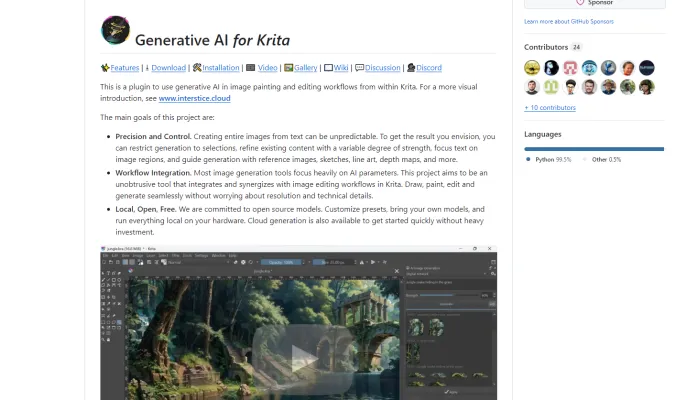
Moreover, Krita's commitment to integration with artificial intelligence technologies is evident through various plugins, such as those for AI-assisted image generation and object detection. This positions Krita as not just a drawing tool, but a versatile platform that leverages AI to enhance creative workflows, making it an essential tool for modern digital artists. For more information, visit Krita's official website.
Use Cases of Krita
Here are some key use cases for Krita, the open-source digital painting software:
- Digital Illustration and Concept Art: Krita excels at creating detailed digital illustrations and concept art. Its customizable brushes, layer management, and painting tools allow artists to produce everything from quick sketches to polished artwork for games, comics, and other media.
- Photo Editing and Retouching: While not its primary focus, Krita offers capable photo editing features. Artists can use it for tasks like color correction, removing blemishes, and adding artistic effects to photographs.
- Animation: Krita includes frame-by-frame animation tools, making it useful for creating 2D animations. Artists can animate directly in Krita, with features like onion skinning and a timeline docker.
- texture Painting: Game artists and 3D modelers use Krita for creating and editing textures. Its brush engine and layer system are well-suited for painting detailed textures for 3D models and environments.
- Comic Book Creation: Krita provides specialized tools for comic artists, including panel templates, text bubbles, and perspective assistants. This makes it a popular choice for creating digital comics and manga.
How to Access Krita
Accessing Krita is straightforward, and you can follow these simple steps:
- Visit the Official Website: Go to Krita's official website.
- Download Krita: Click on the "Download" button and select the version for your operating system.
- Install Krita: Run the installer and follow the prompts to complete the installation.
- Launch Krita: Open the program from your applications folder or start menu.
- Explore Features: Familiarize yourself with the user interface and check out tutorials on their website.
How to Use Krita
To get started with Krita, follow these steps:
- Create a New Document: Select File > New and choose your canvas size and resolution.
- Explore the Interface: Familiarize yourself with the toolbar and panels.
- Use Brushes and Tools: Experiment with different brushes and tools from the Brush Selector.
- Work with Layers: Use layers to organize your artwork and make editing easier.
- Save Your Work: Regularly save your work in the Krita format (.kra) for full feature support.
- Utilize Advanced Features: Try out AI-enhanced features like Inpainting and Live Painting by installing plugins.
How to Create an Account on Krita
To create an account on Krita:
- Visit the KDE Identity Portal at identity.kde.org.
- Click on "Register" and fill out the registration form.
- Accept the terms and conditions.
- Verify your email address by clicking the link sent to you.
- Log in to your new account to access community features and contribute to Krita.
Tips for Using Krita
To enhance your Krita experience:
- Utilize Brush Stabilizers for smoother lines.
- Organize your work with effective layer management.
- Customize keyboard shortcuts for a faster workflow.
- Create and save custom color palettes for consistency.
- Use the Resource Manager to import and manage brushes, textures, and patterns.
By following this guide, you'll be well-equipped to start your journey with Krita, leveraging its powerful features and AI integrations to create stunning digital art. Whether you're a beginner or a professional artist, Krita offers a versatile platform to bring your creative visions to life.
Trending


How to Use Ryne AI: Boost Your Academic Performance
Discover how to leverage Ryne AI's powerful tools for academic success. Learn to use Chat, text Humanizer, and Essay Composer effectively. Explore our full guide now!

SpeakPal Review: AI-Powered Language Learning Revolution
Discover how SpeakPal's AI-driven platform revolutionizes language learning. Explore features, benefits, and alternatives in our comprehensive guide.

Gigi Review: AI Personal Growth Coach Revolutionizing Self-Help
Discover Gigi, the AI-powered personal growth coach. Learn about its features, benefits, and how it's transforming self-improvement. Explore our full guide now!

VideoGen - AI Video Generator Review: Transform Content
Explore VideoGen's AI-powered video creation platform. Learn how it streamlines production, saves time, and boosts engagement. Discover practical tips in our guide.
OpenAI Releases Revolutionary GPT-o1 Model with Enhanced Reasoning Capabilities
OpenAI's new "o1" series of models marks a significant leap in AI problem-solving, designed to tackle complex tasks in science, coding, and mathematics.