
Explore The Best AI Websites & Tool
Your all-in-one toolkit for productivity, creativity, and development. Over 40 powerful tools to streamline your workflow.
SearchHow to use Recraft V3 (Red Panda): A Comprehensive Guide
Recraft, formerly known as Red Panda, is making waves in the world of AI image generation. If you've heard about its impressive image quality and speed, you're not alone. With its high ranking on Hugging Face's text-to-image leaderboard, it's no wonder that over 1.5 million users have embraced Recraft since its launch in 2023.
No matter if you're a beginner or a seasoned user, this guide will take you through the process of using Recraft V3 in 7 straightforward steps. Before diving into the steps, let’s start with an introduction to Recraft AI.
What is Recraft?
Recraft is an AI graphic design tool created by a London-based company. It has an ELO score of 1,172 and a 72% Arena win rate, which puts it ahead of popular competitors like Midjourney and flux 1.1 pro. Its user-friendly interface and collaborative features make it a go-to tool for designers.
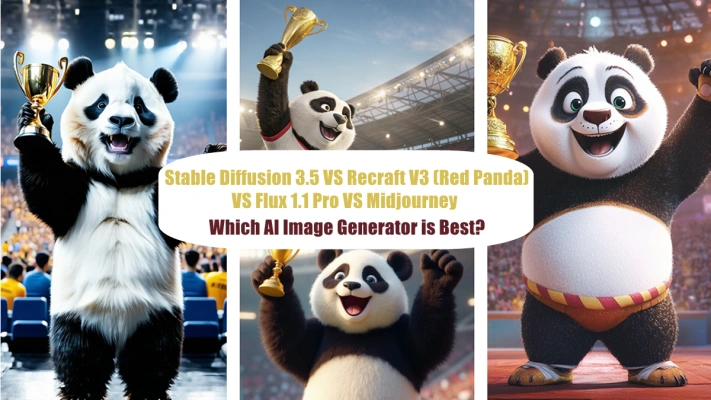
Stable Diffusion 3.5 VS Recraft V3 (Red Panda) VS Flux 1.1 Pro VS Midjourney 6.1: Which AI image Generator is Best?(https://aipure.ai/articles/stable-diffusion-3-5-vs-recraft-v3-red-panda-vs-flux-1-1-pro-vs-midjourney-6-1)
How to use Recraft V3 (Red Panda): Step by Step Guide
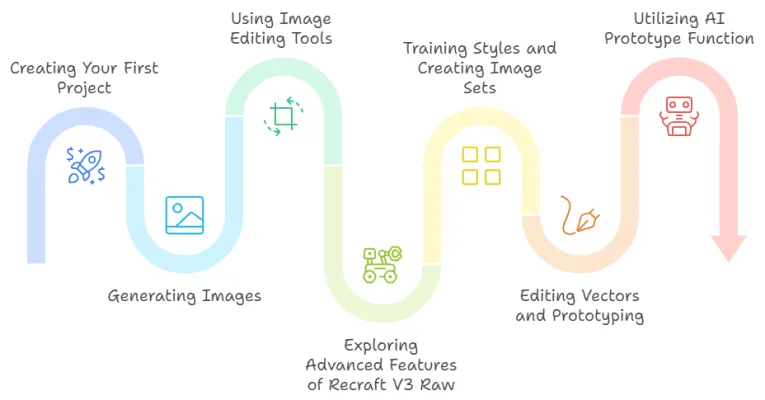
- Log In: Begin by logging into your Recraft account.
- Access Projects Tab: Head to the projects tab to create a new project. This acts as your blank canvas.
- Select image: Click on “image” to begin.
- Adjust Settings: Modify the aspect ratio, image size, and number of images you'd like to generate from the left menu.
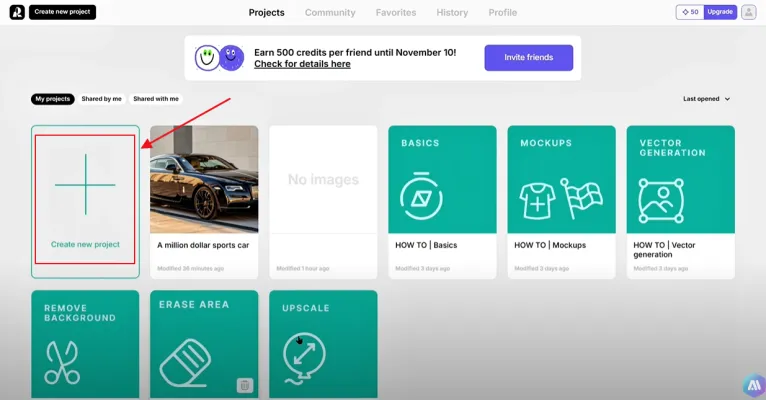
Once you've set up your project:
- Pick a Model: Choose a suitable AI model.
- Add Your Prompt: Write a brief description or prompt for the image you wish to create.
- Click Recraft: Hit the “Recraft” button to generate images.
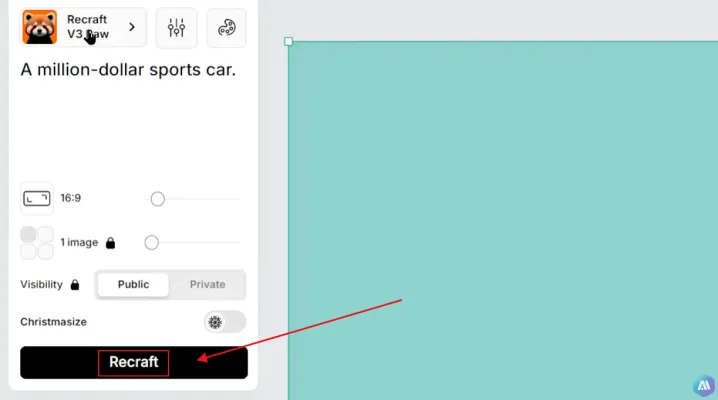
After generating your images, you can make adjustments:
- Adjust Colors: Tweak brightness, hue, and saturation.
- Export Options: Save the finished image directly to your device.
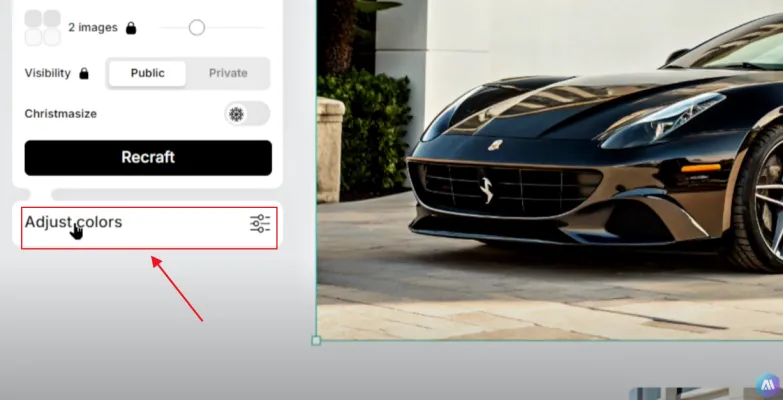
Recraft’s latest model, V3 Raw, excels in producing high-quality images across various styles. Explore options like hand-drawn, clay, and pixel art right from the left menu.
Creating Frames and Boards
For detailed projects:
- Create a Frame Board: Click the frame icon to add text and generate text-based images or vector graphics.
- Upload Designs: Use the upload icon to integrate a design draft, choose your style model, and modify as needed.
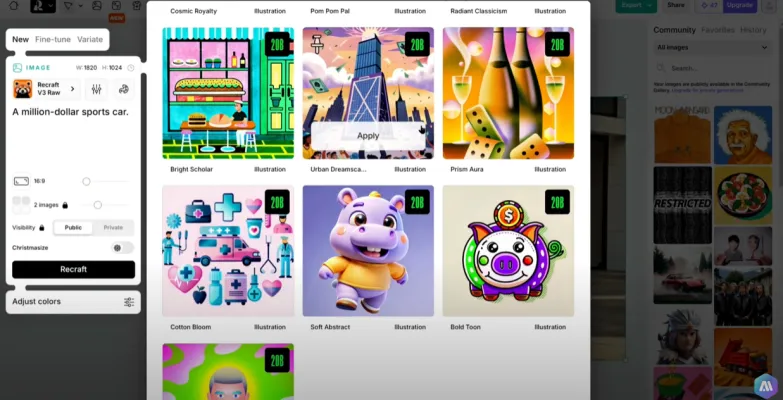
Recraft allows you to create custom styles by uploading five similar images.
- Test Styles: Use the image set feature to group six boards, giving you a chance to test styles effectively.
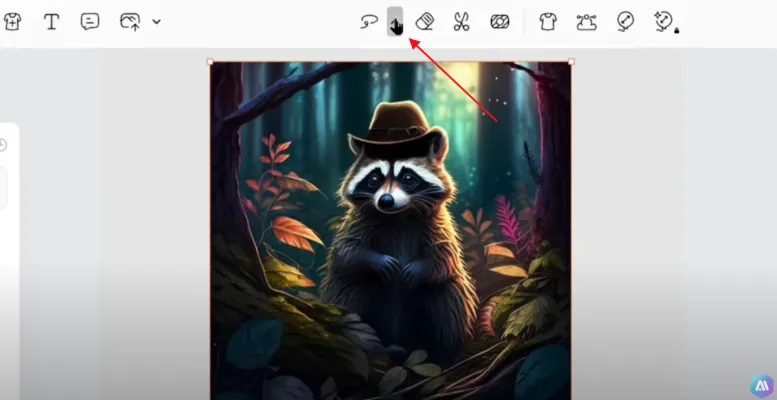
Recraft also offers advanced vector editing capabilities:
- Convert text to Vector: This allows for smooth transitions from text to visual art.
- Color Editing: Double-clicking a vector image opens the color editor for precise adjustments.
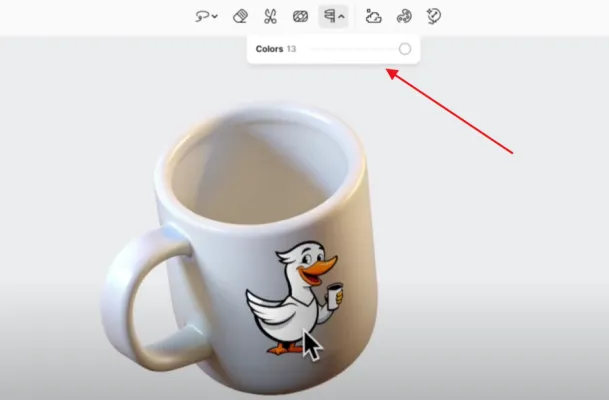
This feature enables you to see how your image would look on physical objects like T-shirts or mugs.
- Create a Prototype Canvas: Click the clothing icon and generate a prototype image.
- Adjust texture: Generate texture content, remove backgrounds, and merge designs effortlessly.
- Use Local Designs: Upload any local designs and merge them into your prototypes.
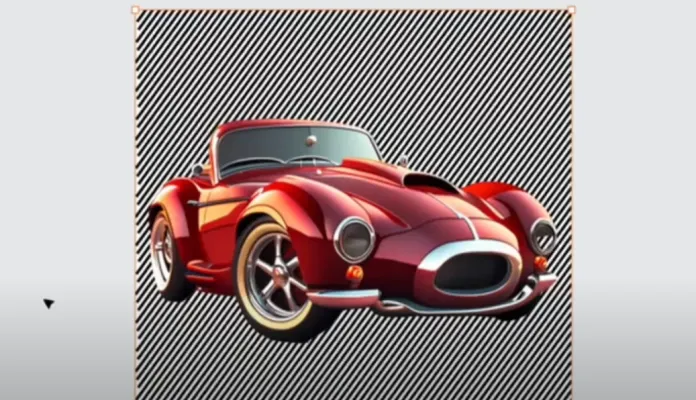
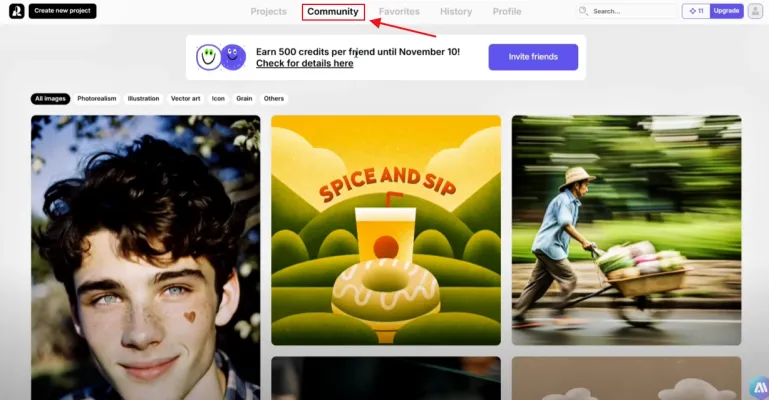
Recraft V3 (Red Panda): Community and Inspiration
Recraft has a vibrant community where users share their creations. Browse through community-generated images to gather ideas and inspiration for your projects. If you like an image, simply collect it to view later.
Conclusion
Recraft is a powerful AI tool that allows users to create stunning images quickly and easily. With its collaborative features, advanced editing tools, and a supportive community, it’s perfect for both new users and seasoned designers. Dive into the world of Recraft and start creating today!

Trending

Raycast Review: AI-Powered Launcher for Mac Productivity
Discover how Raycast revolutionizes Mac productivity with AI integration, customizable features, and seamless app management. Explore our guide for practical tips.
ttsMP3.com Review: Free AI text-to-Speech Service Guide
Explore our comprehensive ttsMP3.com review. Learn about features, benefits, and alternatives of this free AI text-to-speech tool. Discover practical tips for content creators.

OpenAI's SearchGPT: A New AI Search Engine Rivaling Google and Perplexity
OpenAI's SearchGPT aims to revolutionize search engines, challenging Google and Perplexity with advanced AI capabilities. Learn about its features and impact.
Adobe Podcast Review: AI-Powered Audio Creation Tool
Discover how Adobe Podcast revolutionizes audio editing with AI. Explore our comprehensive guide for practical tips on enhancing your podcast creation process.
Meta Video Generator Movie Gen Arrives: A Strong Competitor to OpenAI Sora
Meta has launched Movie Gen, a groundbreaking Meta AI-powered video generation tool that challenges existing platforms like OpenAI's Sora. This innovative model allows users to create personalized videos and audio clips through simple text prompts, marking a significant advancement in the realm of AI video technology.